
Audience: FeraSign administrators and WordPress site administrators
Editorial status: Draft — Review Required (source screenshots included as provided)
Product: FeraSign
Suggested slug: set-up-a-new-ferasign-on-wordpress
FeraSign connects an approved WordPress site to reusable signing configurations. The WordPress plugin stores only an encrypted connection secret and renders the selected FeraSign configuration through a server-rendered embed.
Before you begin
- Confirm that the FeraSign WordPress plugin is installed and activated.
- Have access to the FeraSign account and a WordPress administrator account.
- Use HTTPS on production pages and keep connection secrets, installation IDs, and shortcode identifiers private.
FS-WP-01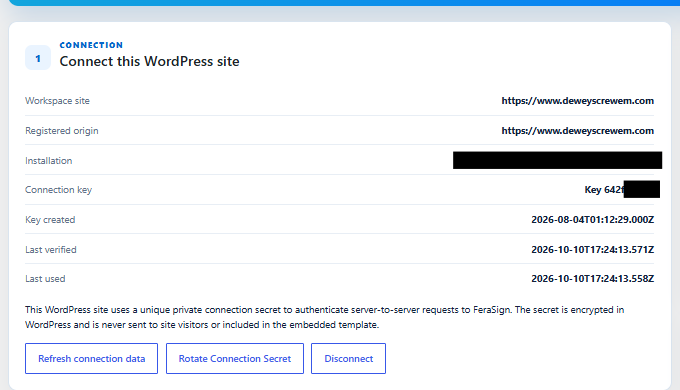
Connect the WordPress site
- In WordPress, open FeraSign from the administrator menu.
- Complete the connection flow for the current site and confirm that the status reads Connected.
- Verify the workspace site and registered origin are the intended HTTPS site. Do not copy connection keys into tickets or content.
- Use Refresh connection data after an origin or service-side change. Use Rotate Connection Secret if the secret may have been exposed. Use Disconnect only when removing the site.
Create a configuration
- In the FeraSign dashboard, locate Configuration Manager.
- Select New configuration.
- Give the configuration a clear internal name, select or create the published template, and save it.
- Confirm that the configuration appears as Active and that a shortcode is available.
FS-WP-02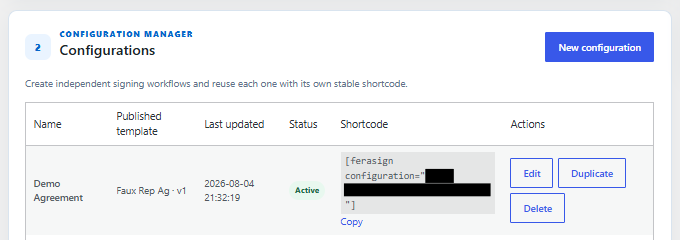
Add the configuration to WordPress content
- Open the Add a configuration to content panel.
- Choose the configuration you want to publish and select Copy shortcode.
- Paste the shortcode into the WordPress editor, or add the FeraSign block in Gutenberg.
- Preview the page, complete one test response, and publish only after the embed and confirmation flow work as expected.
The shortcode is an identifier, not a secret. Treat it as configuration metadata and replace it if the configuration is deleted or recreated.
FS-WP-03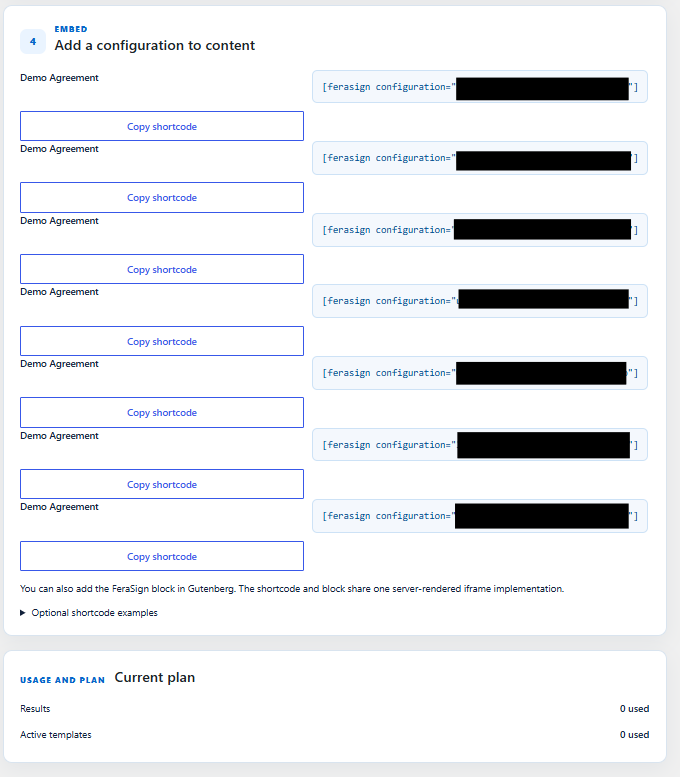
Security and privacy
- Use HTTPS for production pages.
- Never place connection secrets, raw signing documents, or private respondent data in screenshots or support requests.
- FeraSign receives the submitted response through the server-rendered embed; WordPress should not log or store the document contents unless your approved workflow explicitly requires it.
- Disconnect the site and rotate the connection secret when ownership changes or exposure is suspected.
Troubleshooting
The site is not connected
Confirm the plugin is active, the WordPress origin is registered, and the site can reach the FeraSign service over HTTPS. Refresh connection data and rerun diagnostics if available.
No shortcode is available
Confirm that the configuration has a published template and an active status. Create or publish the template, then reload Configuration Manager.
The embed does not render
Confirm that the shortcode or FeraSign block references an active configuration, the page uses HTTPS, and caching or security plugins are not stripping the shortcode or iframe output.
Need help?
Contact your Feradel administrator with the error text, WordPress version, plugin version, and affected configuration name. Do not include connection keys, installation IDs, shortcode IDs, respondent data, or raw payloads.
Screenshot replacement instructions
The included images are the supplied screenshots, split into logical steps without altering their pixels. Replace them only with approved captures if the product UI changes.