
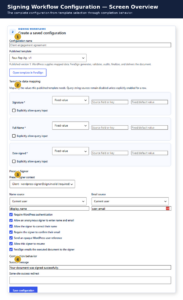
A saved signing configuration connects a published FeraSign template to a reusable WordPress workflow. It tells WordPress which document to open, which values to supply, who is signing, which fields remain available to the signer, and what should happen when signing is complete.
Before you begin
- Create and publish the document template in FeraSign.
- Confirm that every field is named clearly and assigned to the correct signer context.
- Decide which values WordPress should supply and which values the signer must enter.
- Identify the WordPress source for the signer’s name and email address.
Fields marked with an asterisk are required by the published template. Every required field must either receive a valid mapped value or remain available to the signer who is expected to complete it.
1. Name the configuration and select a published template
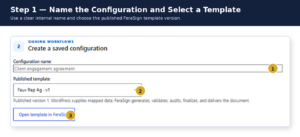
Configuration name
Enter an internal name that makes the workflow easy to identify later. Good examples include Client Engagement Agreement, New Client Retainer, or Employment Acknowledgment.
Published template
Select the FeraSign template WordPress should use. The version indicator identifies the published version currently connected to the workflow. Review the configuration after republishing a template or changing its field definitions.
Open template in FeraSign
Use Open template in FeraSign to confirm field names, required status, signer assignments, and placement. This is especially useful when a mapping row does not behave as expected.
2. Map the template fields
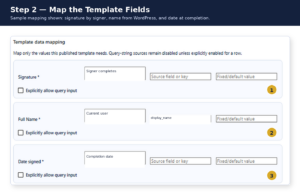
Each mapping row represents one field in the published template. Use the row to determine where the field’s value comes from.
| Control | What it does |
|---|---|
| Source type | Selects the source of the value, such as a fixed value, the current WordPress user, or another supported source. |
| Source field or key | Identifies the exact WordPress property, form field, metadata key, or parameter to read. |
| Fixed/default value | Provides a literal value or, where supported, a fallback when the dynamic source is empty. |
| Explicitly allow query input | Allows that specific value to be supplied through the page URL’s query string. |
Recommended mapping for common signer fields
- Signature: Leave the field for the signer to complete in FeraSign. Do not prefill a signature as a fixed value.
- Full Name: Use the current WordPress user and the
display_namefield when the signer is authenticated. - Date signed: Use the signing or completion date rather than a permanent fixed date.
Security note: Query-string values can be changed by the person opening the URL. Do not enable query input for signatures, identity or authority, pricing, permissions, confidential information, or other legally significant values.
3. Identify the present signer
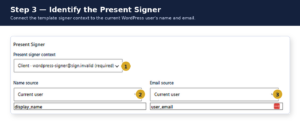
Present signer context
Select the signer role created in the FeraSign template. In a client workflow, that context might appear as Client · wordpress-signer@sign.invalid. The context connects the person using the WordPress page to the fields assigned to that signer in FeraSign.
The sign.invalid address acts as a template-side context identifier. The signer’s real name and email are supplied by the settings below it.
Name and email sources
For an authenticated WordPress user, a typical setup is:
Name source: Current user
Name field: display_name

Email source: Current user
Email field: user_email
The email address may be used for identity confirmation, resume links, the audit record, and delivery of the executed document.
4. Choose the signer experience
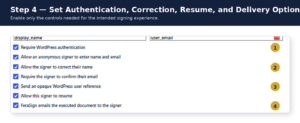
| Option | Use it when |
|---|---|
| Require WordPress authentication | The signing page is inside a client, employee, or member portal and the WordPress account is part of the identity record. |
| Allow an anonymous signer to enter name and email | A public visitor may sign without first having a WordPress account. |
| Allow the signer to correct their name | The WordPress display name may be abbreviated, incomplete, or different from the signer’s legal name. |
| Require the signer to confirm their email | Email accuracy matters for identity, resuming, delivery, or the audit record. |
| Send an opaque WordPress user reference | You want FeraSign to retain a stable association with the WordPress user without exposing ordinary internal identifiers. |
| Allow this signer to resume | The signer may leave an incomplete document and return later. |
| FeraSign emails the executed document to the signer | The signer should automatically receive the finalized document. |
Authenticated client-portal setup
- Require WordPress authentication: On
- Allow anonymous signer: Off
- Allow name correction: On
- Require email confirmation: On
- Send opaque WordPress user reference: On
- Allow signer to resume: On
- Email the executed document: On
Public signing-page setup
- Require WordPress authentication: Off
- Allow anonymous signer to enter name and email: On
- Require email confirmation: On when accurate delivery and resume links are important
5. Define completion behavior
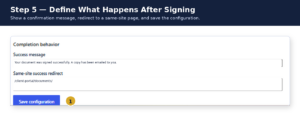
Success message
Tell the signer that the document has been finalized and explain what happens next. For example:
Your document was signed successfully. A completed copy has been sent to your email address.
Same-site success redirect
Enter a page on the same WordPress site when the signer should be redirected after completion. A relative path is usually the safest format:
/client-portal/documents/Leave the field blank when the signer should remain on the signing page and read the success message there.
6. Save and test the workflow
Select Save configuration, then test the workflow using a non-administrator account that resembles the intended signer.
- Confirm that the correct published template opens.
- Verify that WordPress data appears in the correct fields.
- Confirm that prefilled values are read-only when they should be.
- Complete every remaining required signer field.
- Confirm the signer’s name and email.
- Finalize the document.
- Verify the success message or redirect.
- Confirm delivery of the executed document when email delivery is enabled.
What the signer sees
Troubleshooting
The signer cannot complete the document
A required template field may have no mapped value and may not be assigned to the present signer context. Open the template in FeraSign and verify its field assignment.
The wrong name appears
Review both the Full Name template mapping and the Present Signer → Name source setting. Enable name correction when display_name is not always the signer’s proper name.
The signer is unexpectedly asked to log in
Require WordPress authentication is enabled. Disable it for a public or anonymous signing workflow.
An anonymous signer cannot proceed
Confirm that anonymous signing is enabled, authentication is not required, and the signer is permitted to enter both a name and email address.
The document does not finalize
Every required field must either have a valid mapped value or be assigned to the present signer as an editable field.
The completed document is not emailed
Verify the email source, complete email confirmation when required, enable delivery of the executed document, and confirm that FeraSign’s outbound email service is configured.
The redirect does not work
Use a same-site path such as /thank-you/ or /client-portal/documents/. Do not use an unrelated external domain.
All names, addresses, and configuration values shown in this article are sample data. Do not publish screenshots containing production credentials, API keys, tokens, or client information.