
This configuration uses WordPress for information already collected from the signer and FeraSign for the act of signing. The resulting document should contain a signature applied by the signer, a full name taken from the correct WordPress form entry, and a signing date generated when that signature is actually applied.
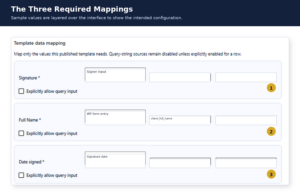
The required result
| Template field | Value source | Expected behavior |
|---|---|---|
| Signature | Signer input | The field remains blank until the present signer adopts and applies a signature. |
| Full Name | WordPress form entry | WordPress retrieves the saved name from the selected form entry and sends it to FeraSign as a prefilled, read-only value. |
| Date signed | Signature-application date | FeraSign fills the date from the audit event created when the signer applies the signature. |
Do not use Fixed value for any of these fields. Do not use query input for the signer’s name, signature, or signing date.
1. Prepare the FeraSign template
- Create a Signature field and assign it to the signer context that will be used by WordPress, such as
Client. - Create a Full Name text field and assign it to the same signer context.
- Create a Date signed field and associate it with the same signer’s signature event.
- Publish the template and select that published version in the WordPress signing configuration.
The date field should be configured as a signature-event date or signing date—not a general document-creation date and not a WordPress page-load date.
2. Map Signature to signer input
In the Signature row, select the source option that means the present signer completes the field. Depending on the installed version, the option may be labeled Signer input, Signer completes, or Leave for signer.
Template field: Signature
Source type: Signer input
Source field or key: [blank]
Fixed/default value: [blank]
Explicitly allow query input: Off
When the signing request opens, the Signature field should be empty and editable by the present signer. WordPress must not submit a stored image, typed signature, or fixed value into this field.
3. Map Full Name from the saved WordPress form entry
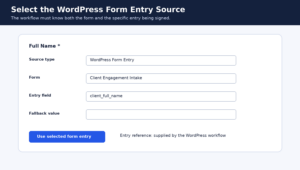
In the Full Name row, select WordPress Form Entry. Then identify the form and the saved field that contains the signer’s full name.
Template field: Full Name
Source type: WordPress Form Entry
Form: Client Engagement Intake
Source field or key: client_full_name
Fixed/default value: [blank]
Explicitly allow query input: Off
The field key must exactly match the key stored by the WordPress form. For example, a form submission might contain:
{
  "entry_id": "ENTRY-10452",
  "client_full_name": "Jordan Taylor",
  "client_email": "jordan.taylor@example.com"
}
The workflow must identify the correct form entry
Selecting a form field is not enough by itself. When WordPress starts the signing workflow, it must also supply a trusted reference to the specific saved entry being used. Resolve that reference on the server and load the stored value from WordPress. Do not accept the client’s name directly from an editable query string.
After WordPress supplies the name, FeraSign should return the field to the signer as prefilled and read-only. When the name is wrong, correct the underlying form entry and regenerate or refresh the signing request rather than allowing the document and the source entry to silently diverge.
4. Map Date signed to the signature-application event
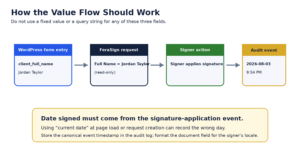
In the Date signed row, select the source tied to the signer’s signature event. Depending on the installed version, the option may be called Signature date, Date signature applied, or Signer completion date.
Template field: Date signed
Source type: Signature date
Source field or key: [blank]
Fixed/default value: [blank]
Explicitly allow query input: Off
FeraSign should keep this field blank until the signer applies the signature. At that moment, it should create an audit event using the server-side timestamp and use that event to populate the date field.
Avoid “Current date” unless it expressly means the signature-event date. A generic current date may be calculated when the page loads or when the request is created, which can be different from the day the signer actually signs.
Recommended timestamp behavior
- Record the canonical signature timestamp on the server, preferably in UTC.
- Format the visible document date using the workflow’s selected locale or time zone.
- Bind the date to the correct signer and signature field when a document has multiple signers.
- Define whether removing and reapplying a signature replaces the visible date with the latest valid application event.
5. Align the Present Signer settings
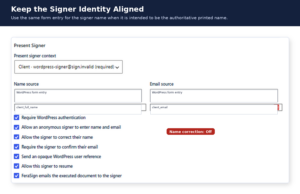
Select the same signer context used by the Signature, Full Name, and Date signed fields. When the WordPress form entry is the authoritative identity source, map the Present Signer’s name and email from that same entry:
Present signer context: Client
Name source: WordPress Form Entry
Name field: client_full_name
Email source: WordPress Form Entry
Email field: client_email
Turn Allow the signer to correct their name off when the printed name must match the saved form entry exactly. Otherwise, the signed document may contain one name while the WordPress record contains another.
6. Save and test
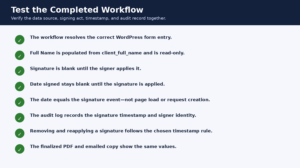
- Submit a test WordPress form with a distinctive full name and email address.
- Launch the signing workflow from that specific entry.
- Confirm that Full Name is populated from the saved entry and cannot be edited.
- Confirm that Signature is empty until the signer applies it.
- Apply the signature and verify that Date signed appears only then.
- Compare the visible date with the signature event in the FeraSign audit record.
- Finalize the document and confirm that the executed PDF and emailed copy contain the same name, signature, and date.
When the required source options are missing
The workflow cannot be configured correctly with Fixed value alone. The source dropdown must expose:
- A signer-completed source for Signature;
- A WordPress Form Entry source with form and field selection for Full Name; and
- A signature-event date source for Date signed.
When one of those options is not available, treat it as an implementation gap. Do not substitute a fixed signature, raw query-string name, or page-load date, because those substitutions change the intended identity and audit behavior.
The names, email addresses, entry identifiers, and mappings shown in this article are sample data. Never publish screenshots containing actual client information, signing tokens, API keys, or private entry identifiers.