
The Destination credential tells FeraChat where to deliver conversations in Slack. For the Slack connection shown in Chat.UI, the credential is a Slack Incoming Webhook URL created for the Slack channel that should receive the messages.
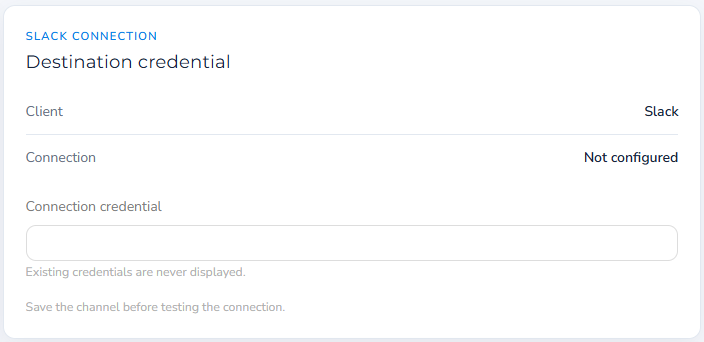
Paste the Slack Incoming Webhook URL into the Connection credential field, save the channel, and then test the connection.
Keep the credential secret. Anyone who obtains an incoming webhook URL may be able to use it to post messages to its assigned Slack channel. Do not place it in public documentation, screenshots, email, or source control.
What the destination credential looks like
A Slack Incoming Webhook URL normally begins with https://hooks.slack.com/services/ and resembles the following:
https://hooks.slack.com/services/T00000000/B00000000/XXXXXXXXXXXXXXXXXXXXXXXXThe URL is associated with the Slack app, workspace, and destination channel selected when the webhook is created. It is not the ordinary web address shown when you open a Slack channel.
Before you begin
- Confirm that you can access the intended Slack workspace.
- Identify the Slack channel that should receive FeraChat messages.
- Confirm that you are permitted to install or configure Slack apps. Some workspaces require approval from an owner or administrator.
- Use a test channel first when configuring a new integration.
Step 1: Open the Slack app configuration
Open the Slack API app-management page and select the Slack app that will be used by FeraChat. If your organization has already created a FeraChat Slack app, use that existing app rather than creating a duplicate.
If no appropriate app exists, select Create New App, choose the option to create the app from scratch, give it a recognizable name, and select the workspace in which it will operate.
Step 2: Enable Incoming Webhooks
- Select Incoming Webhooks from the app’s feature menu.
- Find Activate Incoming Webhooks.
- Turn the setting on.
After incoming webhooks are enabled, Slack will display additional controls for creating webhook URLs.
Step 3: Add a webhook to the workspace
- Select Add New Webhook to Workspace.
- When Slack asks where the app should post, choose the channel that should receive the FeraChat messages.
- Select Allow or Authorize, depending on the prompt shown by Slack.
If the destination is a private Slack channel, the person creating the webhook must ordinarily already be a member of that channel.
Step 4: Copy the generated webhook URL
After authorization, Slack returns you to the app’s Incoming Webhooks page. Under Webhook URLs for Your Workspace, locate the entry for the selected channel and copy its webhook URL.
Copy the entire URL. A missing character, extra space, or truncated value will prevent the connection from working.
Step 5: Enter the credential in FeraChat
- Open Chat.UI.
- Create a new channel or edit the appropriate existing channel.
- Locate the Slack Connection card.
- Paste the complete webhook URL into Connection credential.
- Select Save channel.
For security, Chat.UI does not display an existing saved credential. A blank credential field on a previously configured channel does not necessarily mean that the credential is missing.
Step 6: Test the connection
- Reopen the saved channel if necessary.
- Run the available Slack connection test.
- Confirm that the test message appears in the intended Slack channel.
- Send a test conversation from the website entry point and confirm that it reaches the same destination.
Troubleshooting
| Problem | What to check |
|---|---|
| No “Add New Webhook to Workspace” button appears | Confirm that Incoming Webhooks are activated for the Slack app. |
| Slack will not allow the app to be installed | The workspace may require an owner or administrator to approve apps or app permissions. |
| The private channel does not appear | Join the private channel first and confirm that you have permission to add the app. |
| Chat.UI reports that the connection is not configured | Re-enter the complete webhook URL, save the channel, and then test again. |
| The field is blank after reopening the channel | This is expected when Chat.UI conceals stored credentials. Use the connection status and test function to confirm configuration. |
| Messages appear in the wrong Slack channel | Create a new webhook for the correct channel and replace the saved credential. |
| The webhook previously worked but now fails | Confirm that the Slack app remains installed, the destination channel is active, and the webhook has not been revoked or disabled. |
Security and credential replacement
- Treat the webhook URL as a password.
- Do not publish a real webhook URL in a knowledge-base article or screenshot.
- Do not commit it to GitHub or another source-control system.
- If the URL may have been exposed, revoke the affected webhook in Slack, create a replacement, and update the FeraChat channel.
Important limitation
An Incoming Webhook is designed primarily to let an application post messages into a specific Slack channel. It is not, by itself, a complete two-way Slack connection. Features such as reading agent replies, subscribing to Slack events, creating channels, or operating an AI agent may require a separately installed Slack app with OAuth permissions and event subscriptions.
Official Slack documentation
- Slack: Sending messages using incoming webhooks
- Slack: The incoming-webhook permission scope
- Slack: OAuth and credential security guidance
Summary: Enable Incoming Webhooks in the approved Slack app, add a webhook for the desired channel, copy the generated hooks.slack.com/services/... URL, paste it into the FeraChat Connection credential field, save the channel, and test delivery.