
A channel connects a website entry point to a Slack destination. Use the Create channel screen to name the channel, assign its entry-point code, configure the Slack credential, define the visitor-facing copy, and control whether FeraChat’s WordPress Plugin checks availability before opening a conversation.
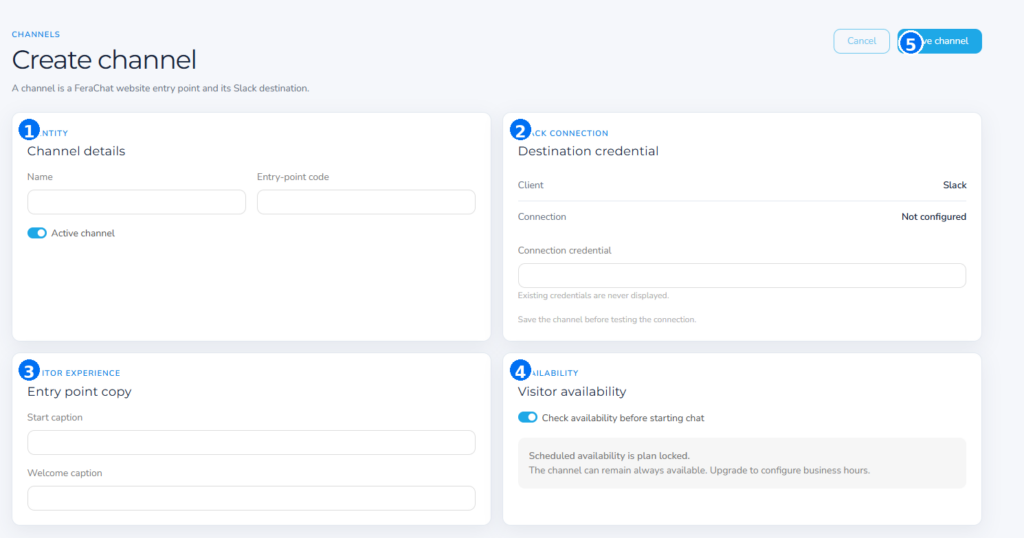
The screen is divided into five working areas: channel details, Slack connection, entry-point copy, visitor availability, and the Save channel action.
Before you begin
- Decide where this channel will appear, such as a website, landing page, support portal, or client area.
- Choose a short, recognizable channel name for administrators.
- Prepare the Slack connection credential required by your Chat.UI deployment.
- Draft the short captions visitors should see when they start and enter the chat.
1. Enter the channel details
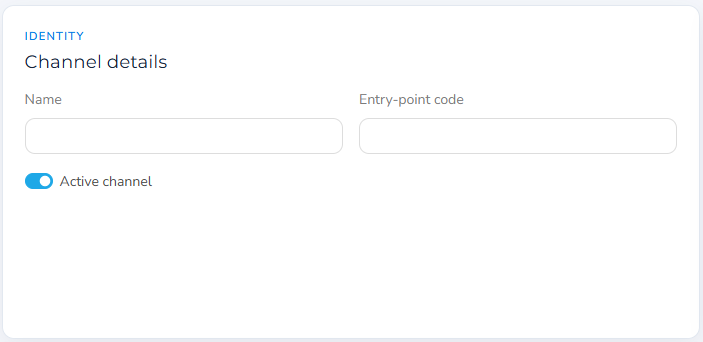
The Identity panel controls how the channel is identified and whether it may be used.
Complete the fields in the Channel details card:
- Name: Enter an administrator-friendly name that makes the destination easy to recognize. Examples include Main Website Chat, Billing Support, or New Client Intake.
- Entry-point code: Enter the code used to identify this website entry point. Use the naming convention established for your deployment and keep the value concise, stable, and URL-safe.
- Active channel: Leave this enabled when the channel should accept new conversations. Turn it off when preparing a channel in advance or temporarily taking an entry point out of service.
Recommended practice: Use a name that describes the business purpose and an entry-point code that describes the technical location. For example: Website Sales and
website-sales.
2. Configure the Slack destination credential
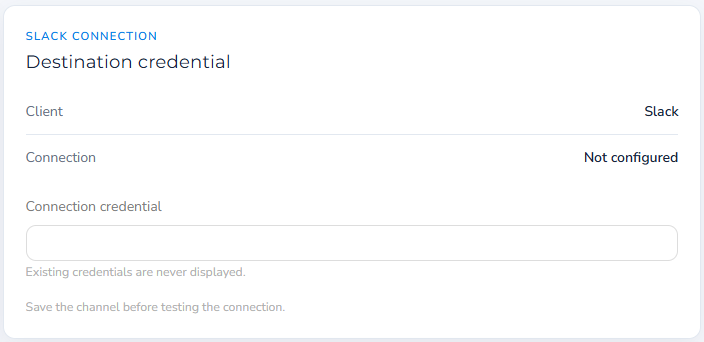
The Slack Connection panel identifies the client, shows the connection state, and accepts the destination credential.
The Slack Connection card shows the selected client and the current connection status. On a new channel, the status may display Not configured.
Paste the required value into Connection credential. For security, an existing credential is not displayed after it has been saved. Re-enter a credential only when establishing or replacing the connection.
The screen instructs you to save the channel before testing the connection. Complete the remaining fields, select Save channel, and then return to the saved channel to run any available connection test.
Credential handling
- Copy and paste the credential directly from the approved source to avoid transcription errors.
- Do not place credentials in channel names, captions, support tickets, or screenshots.
- Replacing the saved value should be treated as a credential rotation and verified afterward.
3. Write the visitor-facing entry-point copy
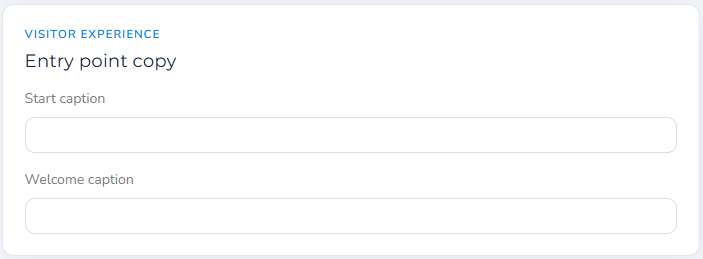
Use concise copy that tells the visitor what the chat is for and what will happen next.
The Visitor Experience card controls the text presented at the entry point:
- Start caption: The short invitation or action text shown before the visitor begins. Good examples include Chat with our team, Ask a billing question, or Start a secure intake chat.
- Welcome caption: The first orientation message shown when the visitor enters. Explain who will respond, what information the visitor should provide, or what the channel is intended to handle.
Keep both captions brief. The start caption should work as a clear call to action, while the welcome caption should set expectations without forcing the visitor to read a long paragraph before beginning.
Example copy
| Channel purpose | Start caption | Welcome caption |
|---|---|---|
| General support | Chat with support | Tell us how we can help. A member of our team will respond in this chat. |
| New client intake | Start an intake chat | Briefly describe the help you are seeking. Please do not send highly sensitive information until requested. |
| Billing | Ask a billing question | Tell us which invoice or account your question concerns so we can route it correctly. |
4. Choose how availability is handled
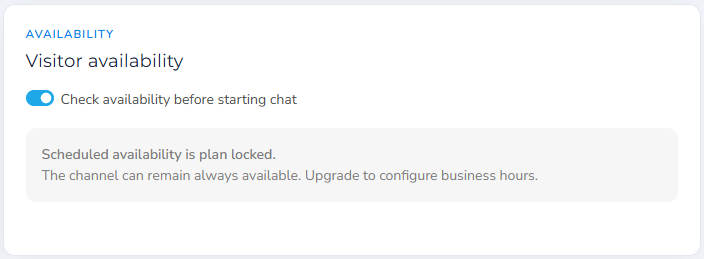
Availability checking can prevent a visitor from starting a chat when the configured destination is unavailable.
Enable Check availability before starting chat when Chat.UI should verify availability before opening the conversation. This is useful when the visitor experience should change based on whether the destination is currently able to receive chats.
The screen shown here indicates that scheduled availability is plan-locked. In that state, the channel may remain always available, while configurable business hours require an upgraded plan. The exact behavior should follow the plan and availability settings assigned to the account.
5. Save the channel
Review all four cards, then select Save channel in the upper-right corner. Saving creates the channel and allows Chat.UI to persist the Slack credential and other settings. Use Cancel to leave the screen without creating the channel.
Post-save verification checklist
- Confirm that the saved channel remains active.
- Verify that the Slack connection no longer shows an unconfigured state.
- Run the available connection test after saving.
- Open the website entry point and confirm that the start and welcome captions are correct.
- Send a test message and verify that it reaches the intended Slack destination.
- Confirm that availability behavior matches the account plan and operating-hours policy.
Troubleshooting
| Issue | What to check |
|---|---|
| Connection remains “Not configured” | Confirm that a credential was entered and that the channel was saved. Re-enter the credential if it was copied incompletely. |
| The credential field is blank after reopening | This is expected. Saved credentials are not displayed. |
| Connection testing is unavailable | Save the new channel first, then reopen or edit it before testing. |
| Visitors cannot start a chat | Confirm that Active channel is enabled and review the availability-check behavior. |
| Business-hour controls cannot be edited | The screenshot indicates that scheduled availability may require a higher plan. |
| Messages reach the wrong Slack destination | Verify that the channel was created with the intended destination credential and entry-point code. |
Summary: A complete channel needs a clear administrative identity, a valid Slack destination credential, concise visitor-facing copy, an intentional availability setting, and a successful post-save test.Create a FeraChat Channel in Chat.UI