
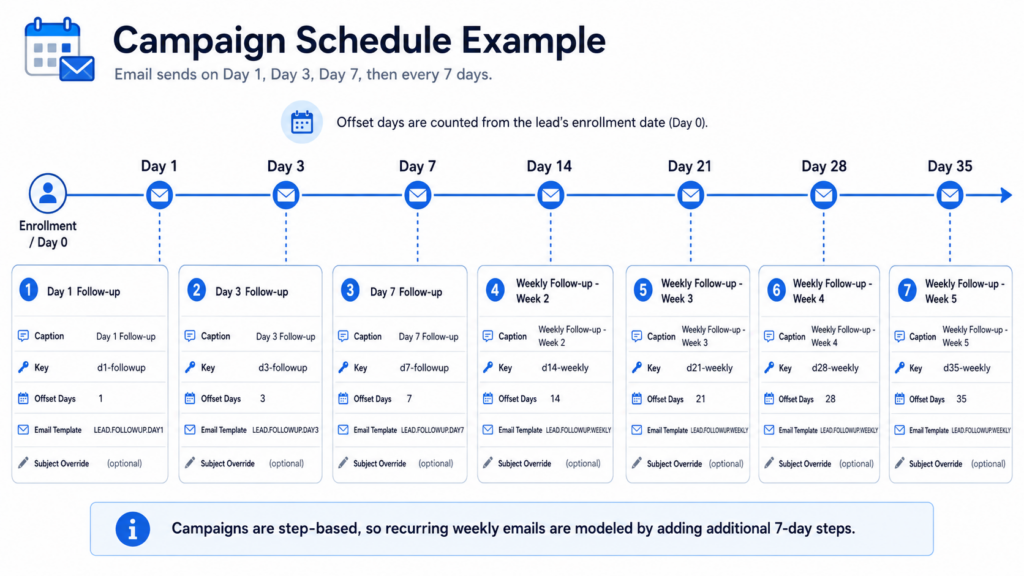
CRM campaigns allow leads to be enrolled in a scheduled series of email follow-ups. A campaign defines who can receive the campaign, whether it is assigned automatically, and which email templates are sent at each step. Campaign emails are sent through the Email API, using the selected email template and the lead, person, and campaign data available at send time.
Campaigns are managed in Settings > Lead Workflow > Campaigns. Email templates used by campaigns should be created and tested before they are selected in a campaign. For more detail about template fields and testing, see Email Templates.
Campaign Fields
| Field | Description |
|---|---|
| Caption | The display name shown to users in the campaign list. Use a clear name such as Initial Consultation Follow-up or Intake Reminder Campaign. |
| Name | The internal campaign name. This value must be unique. Use a stable system-friendly value such as lead-intake-reminders. Avoid changing the name after the campaign is in use. |
| Description | A short note explaining the purpose of the campaign. This is for administrators and does not appear in the email sent to the lead. |
| Default | When enabled, the campaign is automatically applied to open leads during campaign enforcement if the lead is not already enrolled in that campaign. |
| Selectable | When enabled, the campaign is available for manual selection where a lead campaign selector is presented. If a lead-level selector is not available in your version, use Default campaigns for automatic enrollment. |
| Enabled | Only enabled campaigns are processed. Disable a campaign to stop new enforcement runs without deleting the campaign history. |
| Sort | Controls display and processing order when multiple campaigns exist. Lower numbers sort first. |
Step Fields
| Field | Description |
|---|---|
| Caption | The administrator-facing label for the step, such as Day 0 Welcome or Day 3 Reminder. |
| Key | A unique identifier for the step within the campaign. Once a campaign has been used, do not reuse a key for a different message because delivery history is tracked by key. |
| Offset Days | The number of days after the lead is enrolled in the campaign before this step is due. An offset of 0 is due immediately on the next enforcement run. An offset of 3 is due three days after enrollment. |
| Email Template | The Email API template to send for this step. The template must exist and should be tested before the campaign is enabled. |
| Subject Override | Optional. When provided, this subject is sent instead of the subject configured on the email template. |
How to Create a Campaign
- Open Settings > Lead Workflow.
- Select the Campaigns tab.
- Click New.
- Enter a Caption and unique Name.
- Enter a Description that explains when the campaign should be used.
- Choose whether the campaign is Default, Selectable, Enabled, and set the Sort value.
- Add one or more Steps.
- For each step, enter a Caption, Key, Offset Days, and select an Email Template.
- Use Dry Run to preview what the campaign enforcement would do without creating memberships or sending email.
- Click Save.
How Campaigns Run
- Campaign enforcement processes enabled campaigns only.
- Default campaigns are automatically enrolled for leads whose status is OPEN.
- Each campaign enrollment is tracked separately as a membership.
- Each step is tracked separately as a delivery.
- A step is sent when its Offset Days date is due.
- If the lead does not have an email address, the step is skipped and recorded as skipped.
- If the email template is missing, the step is skipped and recorded as skipped.
- If the Email API returns an error, the membership is marked with an error so it can be reviewed.
- When all steps have been sent or skipped, the campaign membership is marked complete.
Template Data Available to Campaign Emails
Campaign emails receive a data package containing the lead, person, and campaign. Templates can reference the data using the dataset names Lead, lead, Person, person, Campaign, and campaign. The exact fields available depend on the lead and person record, so templates should be tested against a realistic lead before being used in an enabled campaign.
Best Practices
- Create and test the email templates before configuring the campaign.
- Use one campaign per clear lead journey, such as Intake Follow-up, Consultation Reminder, or Dormant Lead Reconnect.
- Start with a small number of steps. Add more only after the first campaign is working as expected.
- Use stable step keys. If a message changes, edit the template or create a new step key rather than reusing an old key for a different purpose.
- Run Dry Run after every configuration change.
- Keep Default campaigns limited to messages that every open lead should receive.
- Disable a campaign instead of deleting it when you want to preserve history.
- Review skipped and error results after enforcement runs to find missing email addresses, missing templates, or template errors.
Paid support is available by subscription or on a project basis. Contact us to learn more.